InstaLeads Pro user guide
Everything from creating your account to your first list of buyers, with a picture of each screen. Reading it start to finish takes about 15 minutes; your first scan takes about 2.
1Create your account
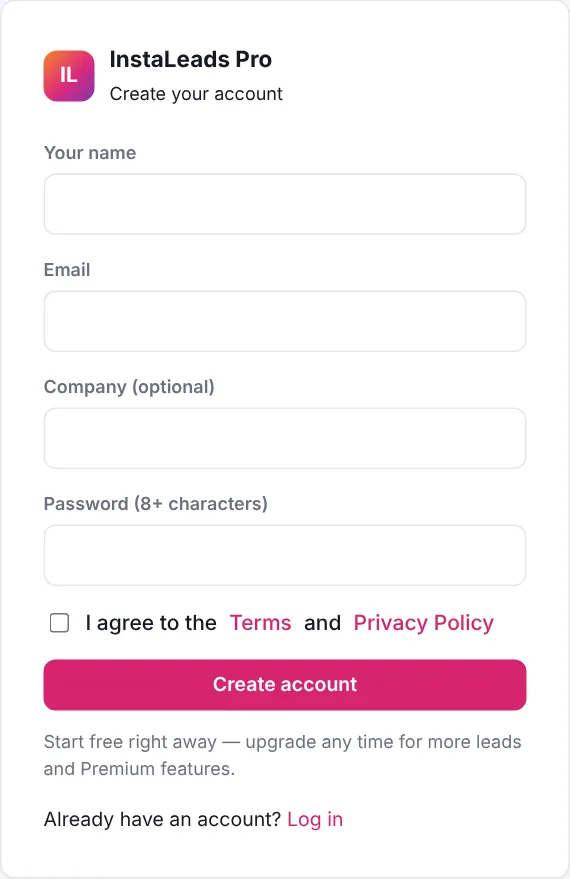
Your account holds your leads, lists and settings. You use the same email and password on the website and in the extension.
- Open Create account.
- Enter your name, email, company (optional) and a password of 8 or more characters.
- Tick that you agree to the Terms and press Create account. You start on the Free plan straight away.
2Install the Chrome extension
Scans run in the extension, inside Google Chrome on a computer. It uses the Instagram login already in that Chrome, so you never type your Instagram password into InstaLeads Pro.
- Open the Chrome Web Store link for InstaLeads Pro that you got from us in Google Chrome.
- Press Add to Chrome, then Add extension.
- Click the puzzle icon at the top right of Chrome and press the pin next to InstaLeads Pro, so its icon is always visible.
- In the same Chrome, open instagram.com and log in to the Instagram account you want to scan with.
3Sign in to the extension
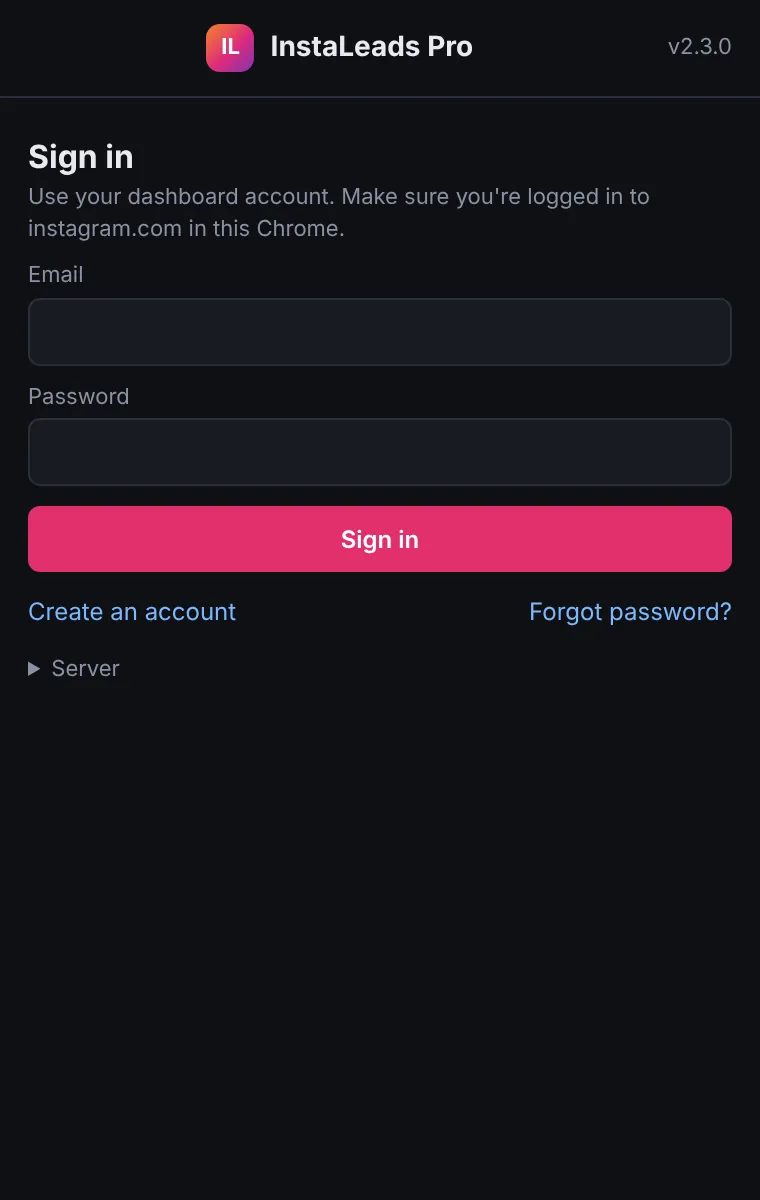
- Click the InstaLeads Pro icon in Chrome's toolbar.
- Enter the email and password of your InstaLeads Pro account and press Sign in.
- Your name and plan appear at the top. The Dashboard button opens this website.
4Run your first scan
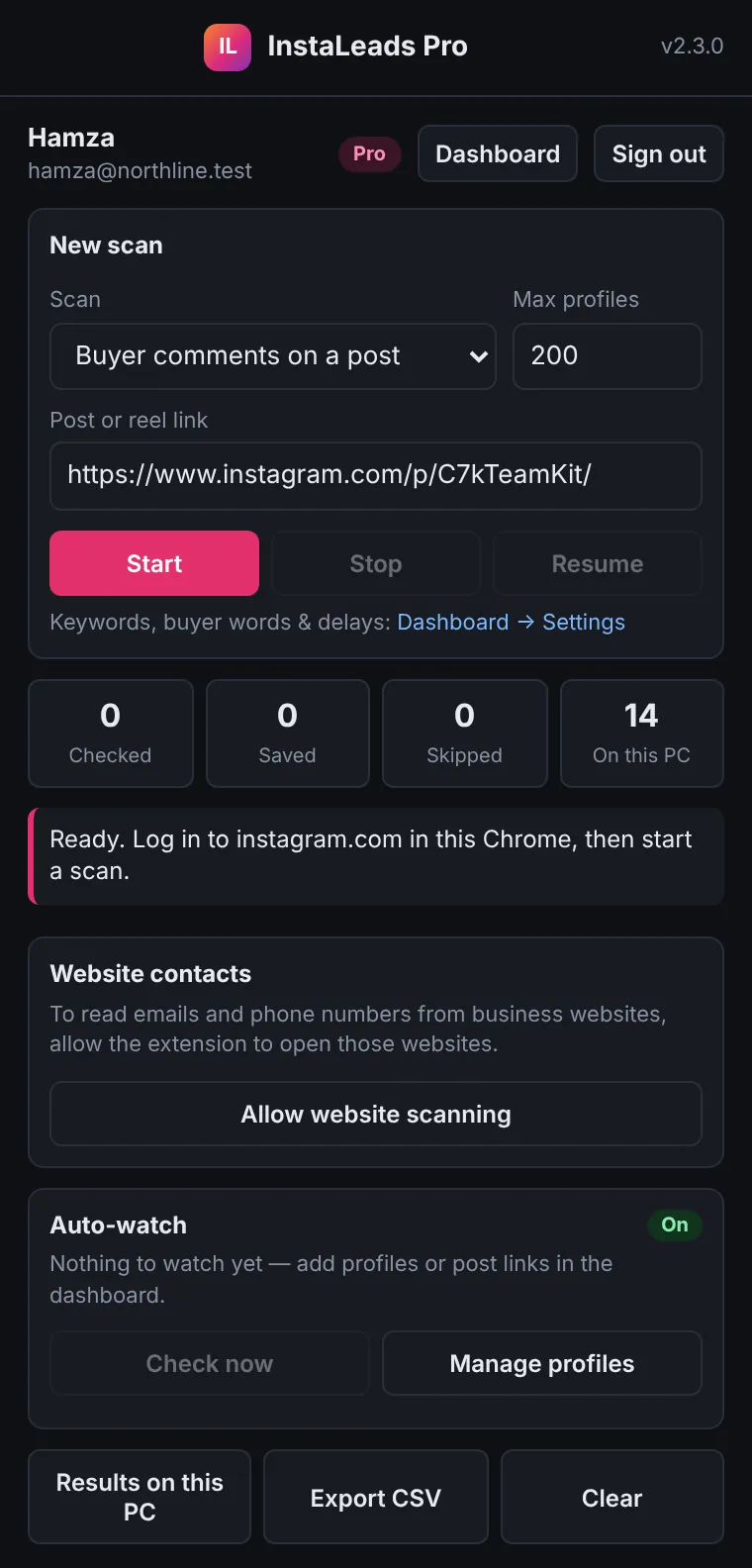
Pick what to scan, paste a link or username, and press Start. You can close the popup; the scan keeps running.
- Open the extension and choose a type under Scan (table below).
- Paste the post link (copy it from the post's … menu → Copy link) or type the account username.
- Set Max profiles. 200 is a good start; bigger scans take longer.
- Press Start. Keep the Instagram tab open in Chrome while it runs.
Which scan should I use?
| Buyer comments on a post | Reads a post's comments and saves the people asking to buy (price, order, MOQ, shipping, sizes). Comments like “DM me” or “check my page” are saved as Seller for your marketing. Best for posts by competitors or big brands in your niche. |
|---|---|
| Followers of account | Checks the followers of an account and keeps businesses that match your keywords (shops, clubs, academies, gyms…). Great on a competitor's or supplier's account. |
| Following of account | Same, for the accounts a profile follows. Useful on a big buyer's account to find the brands they buy from. |
| Likers / Commenters of a post | Checks everyone who liked or commented, not only buyers. Paid plans. |
| My username list | Paste usernames, one per line, and get each one checked and saved with its details. |
5Follow a scan
While a scan runs, the extension shows how many profiles it has checked, saved and skipped, and what it is doing right now.
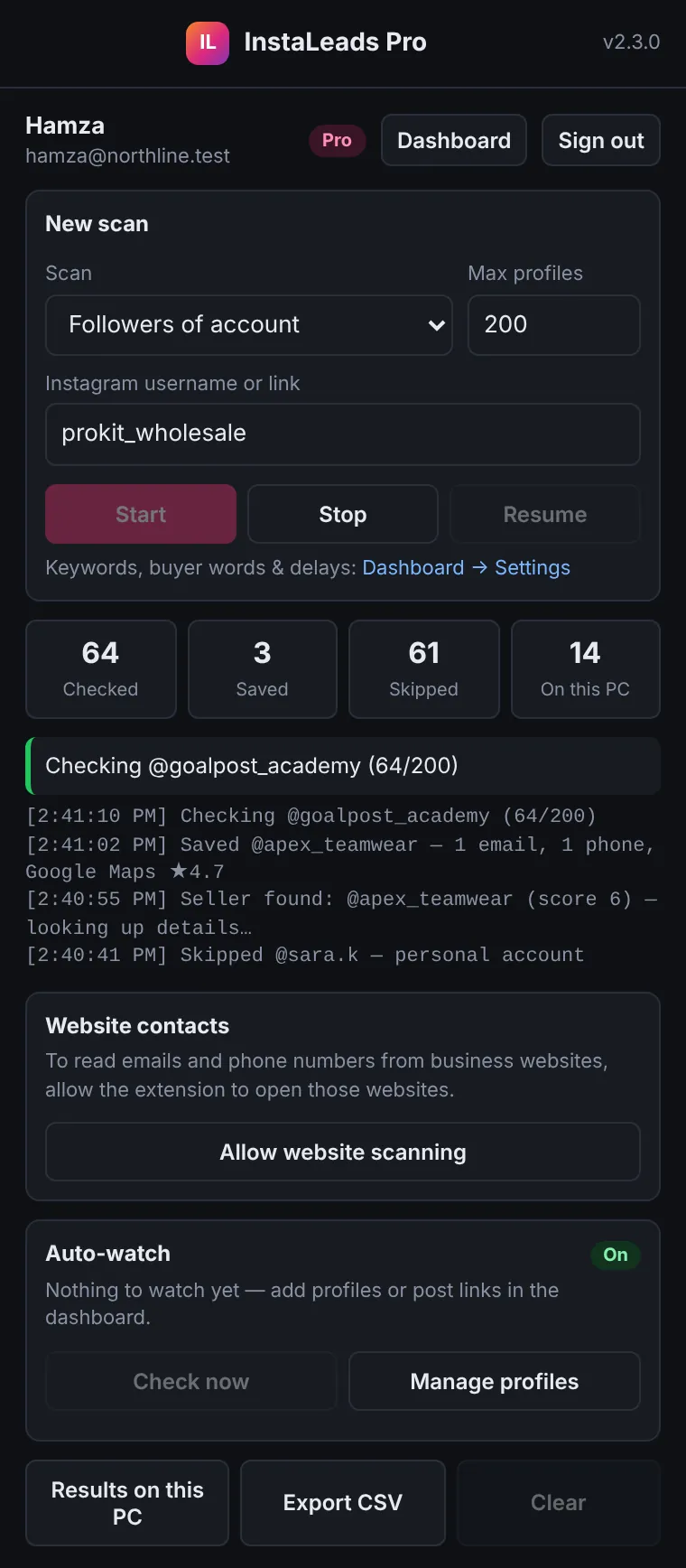
| Checked | Profiles looked at so far. |
|---|---|
| Saved | New leads sent to your dashboard. |
| Skipped | Personal accounts, low scores, few followers, spam, or already saved. |
| Stop / Resume | Stop at any time; Resume continues from where it stopped. |
The log line “pausing N min” means Instagram asked for a break. The extension waits and carries on by itself.
6Work with your leads
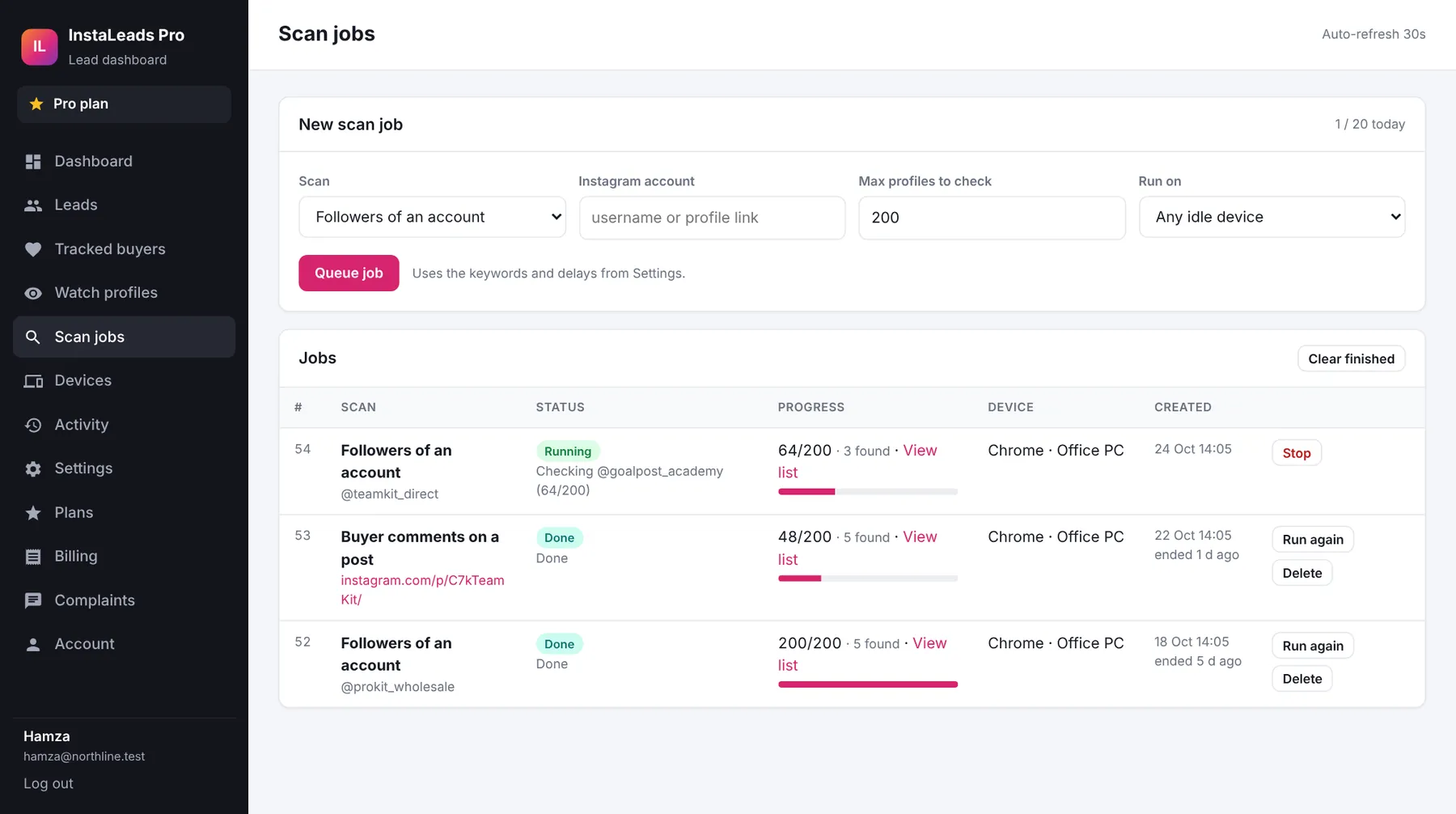
Open Leads in the dashboard. Every search has its own list on the left, for example Buyer comments on post C7kTeamKit or Followers of @prokit_wholesale. Click a list to see only those leads.
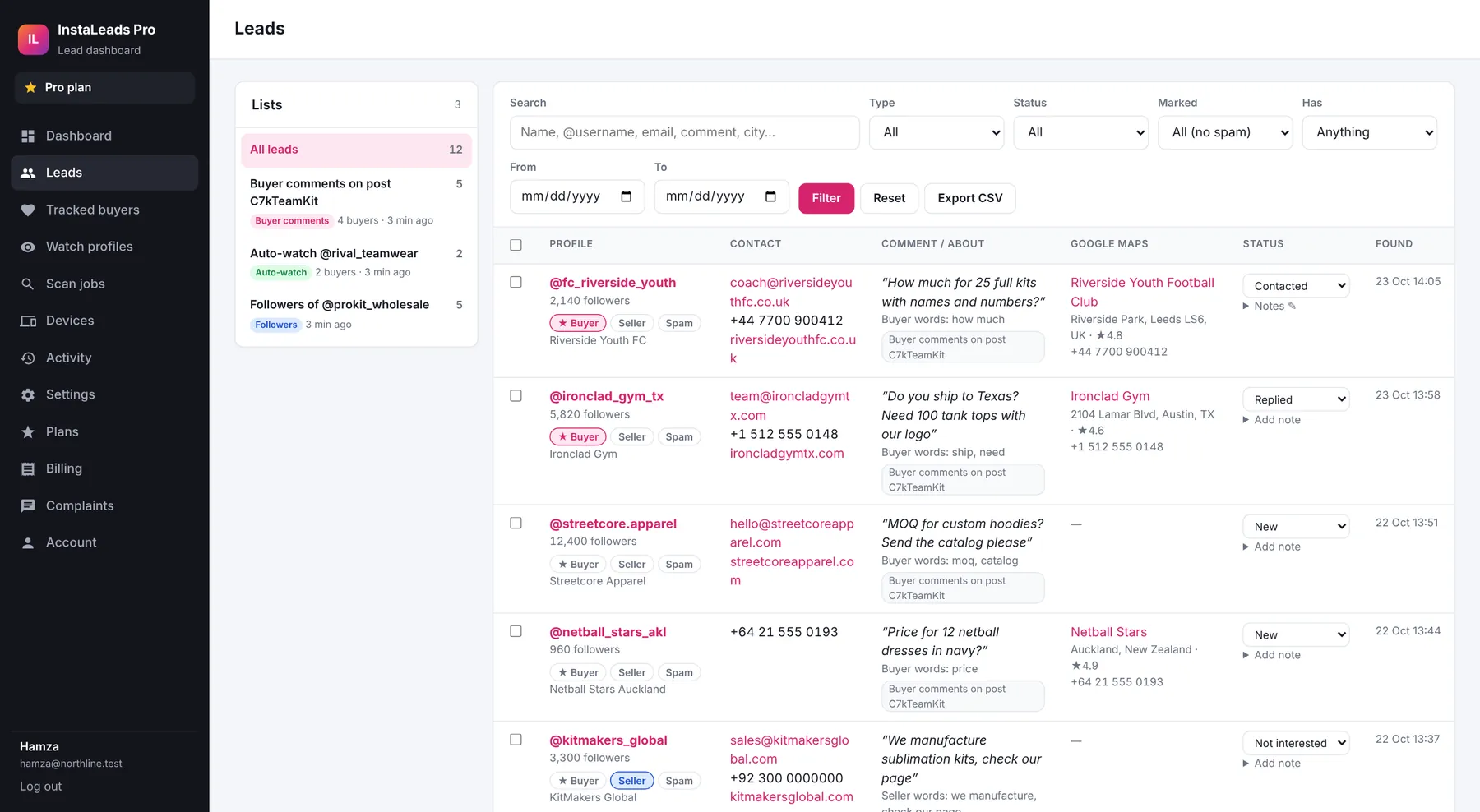
| Search and filters | Search names, usernames, emails, comments or cities. Filter by type, status, mark, “has email / phone / website” and date. |
|---|---|
| Contact | Emails, phone numbers and website found for that profile. Click to email or open. |
| Comment / About | The comment they wrote and the words that made it a buyer or seller, or the business category for followers. |
| Google Maps | The business name, address, rating and phone from Google Maps, when found. |
| Status and notes | Move each lead through New, Contacted, Replied, Converted or Not interested, and add a private note. |
| With selected | Tick several leads to set a status, mark them or delete them at once. |
7Mark Buyer, Seller or Spam
Under each username are three buttons. A click saves right away; the page does not reload. A message at the bottom confirms it and offers Undo.
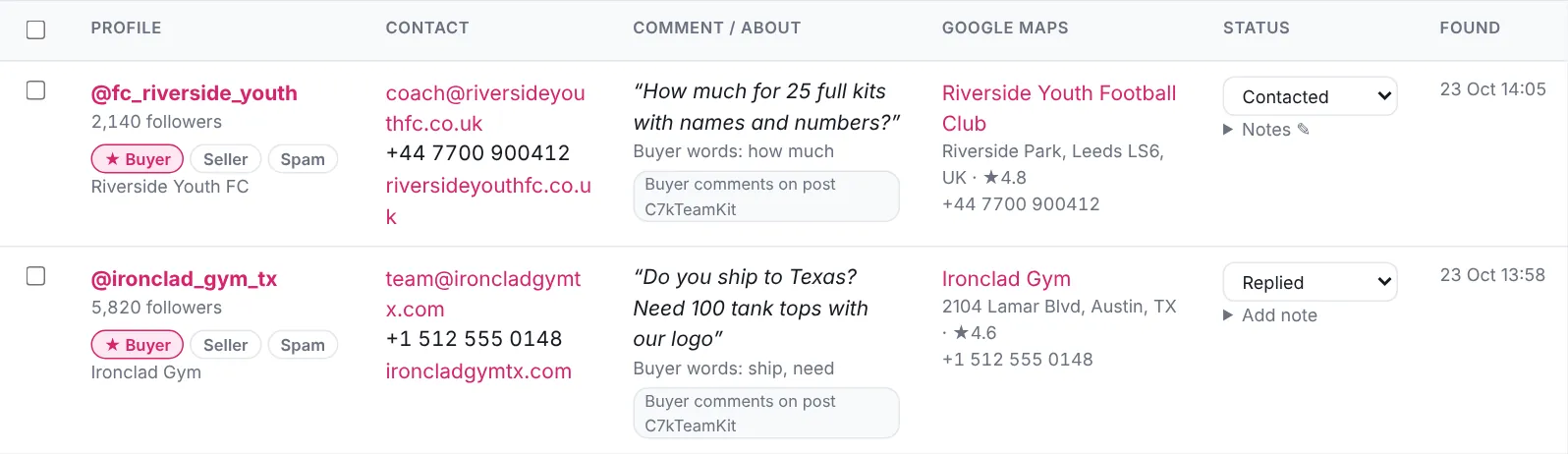
| ★ Buyer | Marks the profile as a buyer and starts tracking it (see Tracked buyers). |
|---|---|
| Seller | Marks it as a seller, for example a competitor or a supplier you may want to market to. |
| Spam | Hides the profile and skips it in all your future searches. When several users mark the same profile, it is skipped for everyone. |
Click a mark that is already on to remove it. To see hidden spam again, choose Marked → Spam (hidden) in the filters.
8Tracked buyers
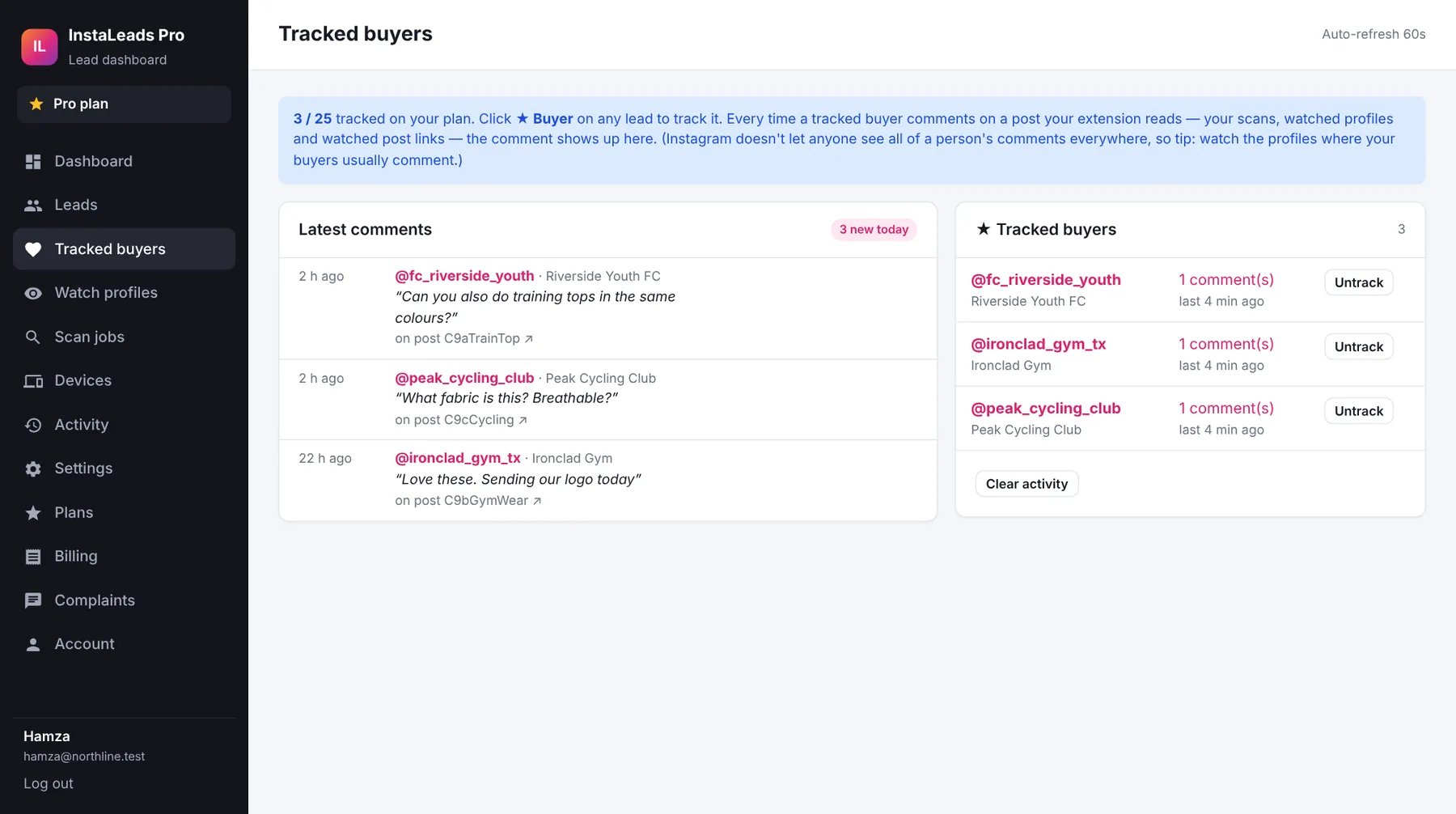
Tracked buyers are the people you starred with ★ Buyer. Whenever the extension reads a comment from one of them, on any post, it appears here with a link to the post. It is a good signal to follow up.
9Auto-watch profiles and posts
Auto-watch checks profiles and posts for you on a timer, as long as Chrome is open on one of your computers.
- Open Watch profiles.
- Paste usernames, profile links or post links, one per line. Add a label if you like, such as “UK competitor”.
- Press Add to watch list.
- On the right, keep Auto-watch on and pick how often to check. Every hour is a safe default.
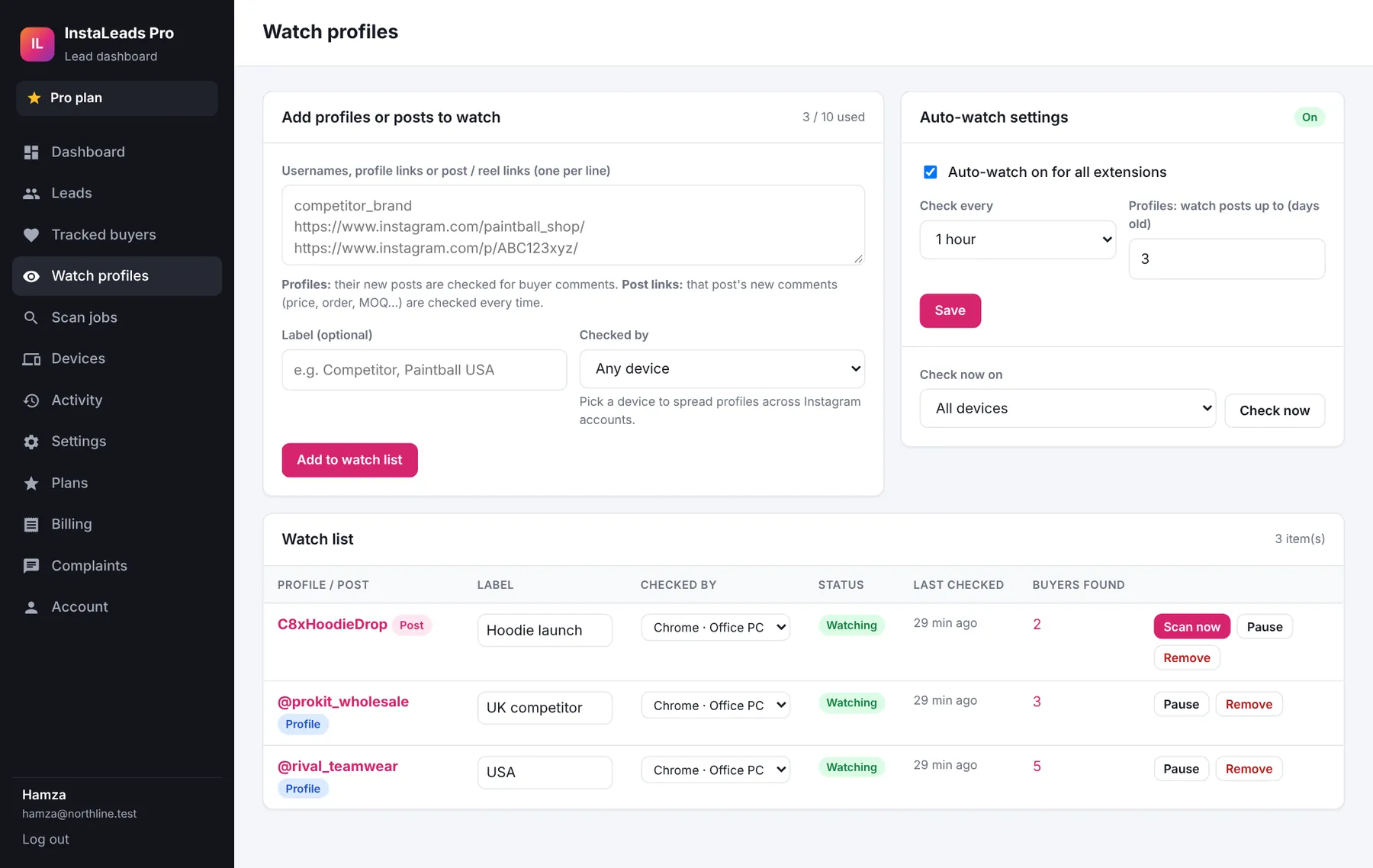
| Profile | Its new posts (up to the age you set, 3 days by default) are checked for buyer comments. |
|---|---|
| Post link | That one post is checked for new buyer comments every time. Use it for a competitor's viral post. |
| Scan now | Checks a post immediately instead of waiting for the timer. |
Buyers found by Auto-watch go into lists called Auto-watch @username on the Leads page.
10Emails, phones and Google Maps
For every business it saves, the extension looks for contact details in three places: the contact buttons on the Instagram profile, the website in their bio, and Google Maps.
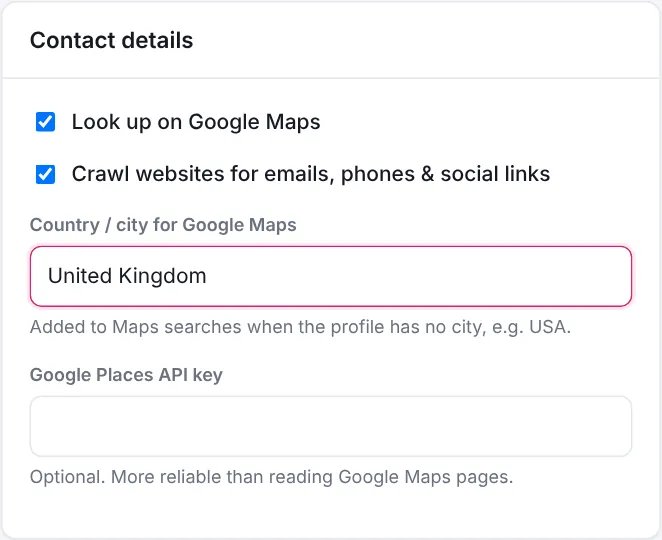
- In the dashboard open Settings → Contact details and keep Look up on Google Maps and Crawl websites ticked.
- Optional: add a country or city (for example United Kingdom) to help Google Maps when a profile has no city.
- In the extension, press Allow website scanning once and accept Chrome's question. Without it, website emails and phones are skipped.
11Export to CSV
- On the Leads page, pick a list or set your filters.
- Press Export CSV. The file has the same leads you see, with every contact field in its own column.
- Open it in Excel or Google Sheets, or import it into your CRM or email tool.
The extension's Export CSV button saves the leads found on that computer in the same format.
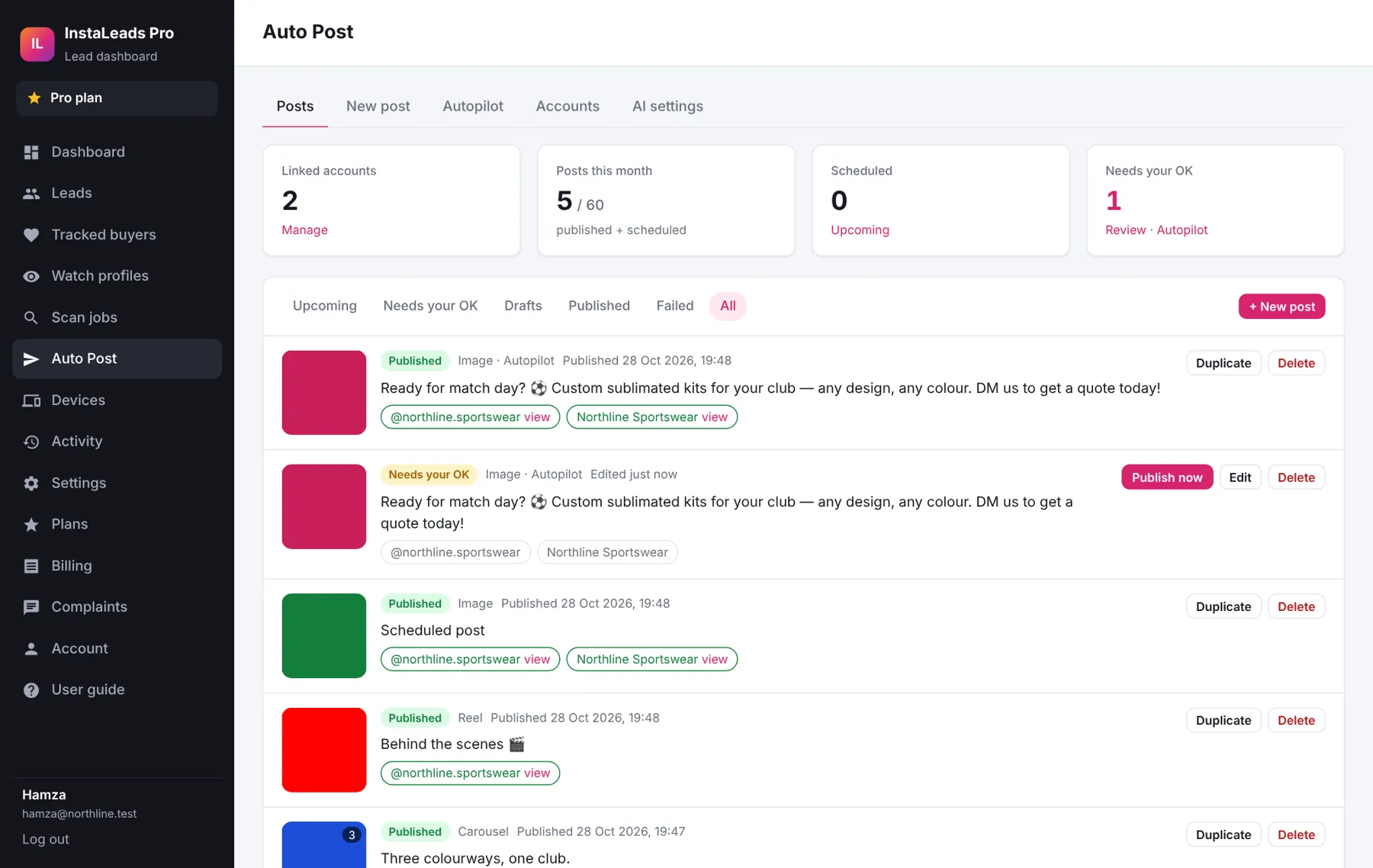
12Auto Post: AI posts for Instagram & Facebook
Auto Post publishes to your Instagram and Facebook Page for you. AI writes the caption and hashtags and can create the picture. You can post now, schedule, or let Autopilot post on set days. It is part of the paid plans.
Set it up once
- Make your Instagram a professional account (Business or Creator) and link it to your Facebook Page (Instagram app → Edit profile → Page).
- Open Auto Post → Accounts and press Connect Instagram & Facebook. Log in to Facebook, choose your Page and allow posting. Tick the accounts to link.
- Open Auto Post → AI settings. Paste your own OpenAI or Google Gemini API key, and describe your business: what you sell, MOQ, shipping, how to contact you. The AI uses these facts and never invents prices or phone numbers.
Make a post
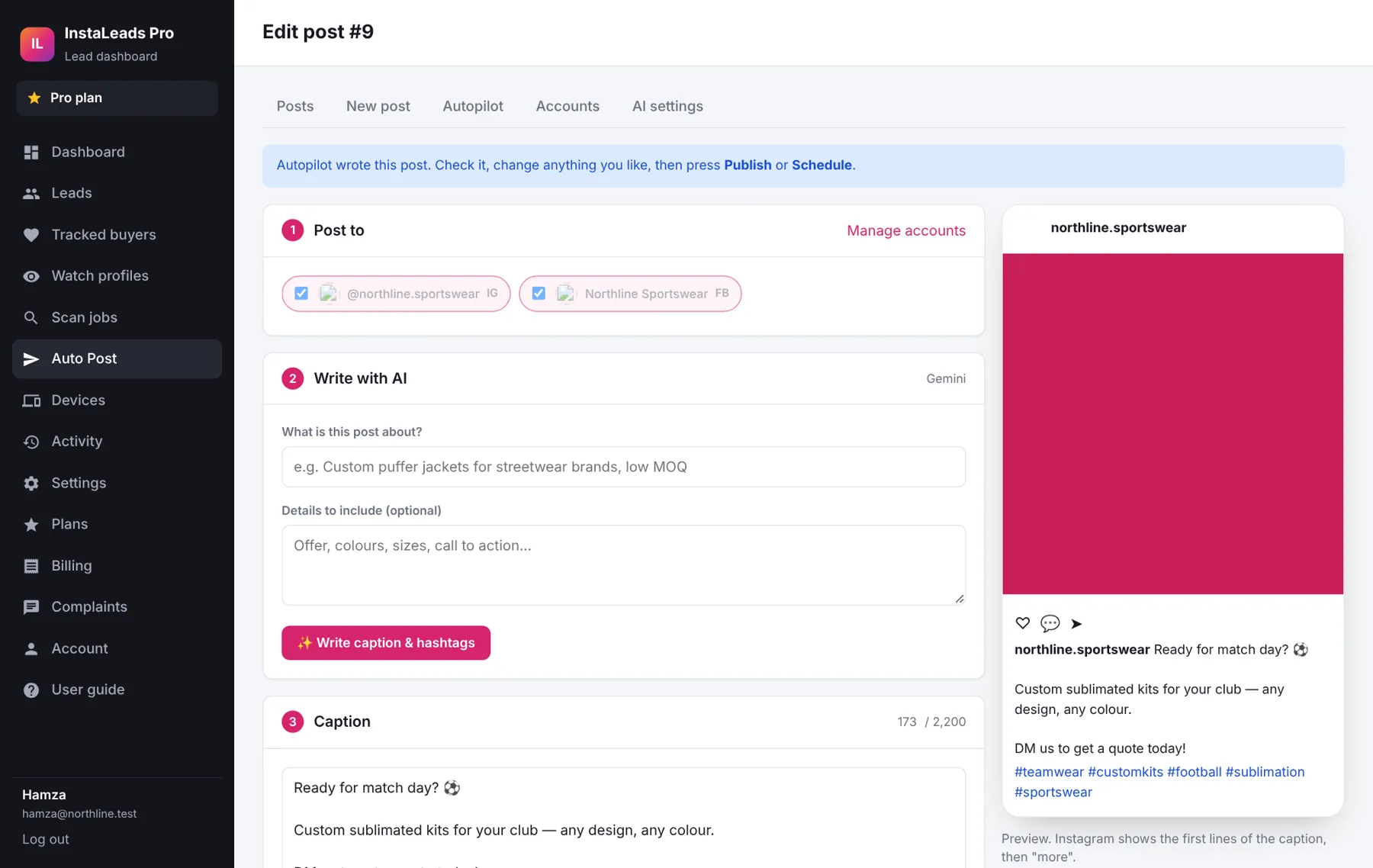
- New post → tick the accounts to post to.
- Type what the post is about and press ✨ Write caption & hashtags. Edit the text as you like.
- Pick Image, Carousel (2–10 pictures) or Reel (MP4 video). Upload files, or press 🎨 Create picture for an AI picture. Pictures are cropped to the shape you pick.
- Choose Publish now, Schedule (date and time) or Save as draft. The preview on the right shows how it will look.
Autopilot
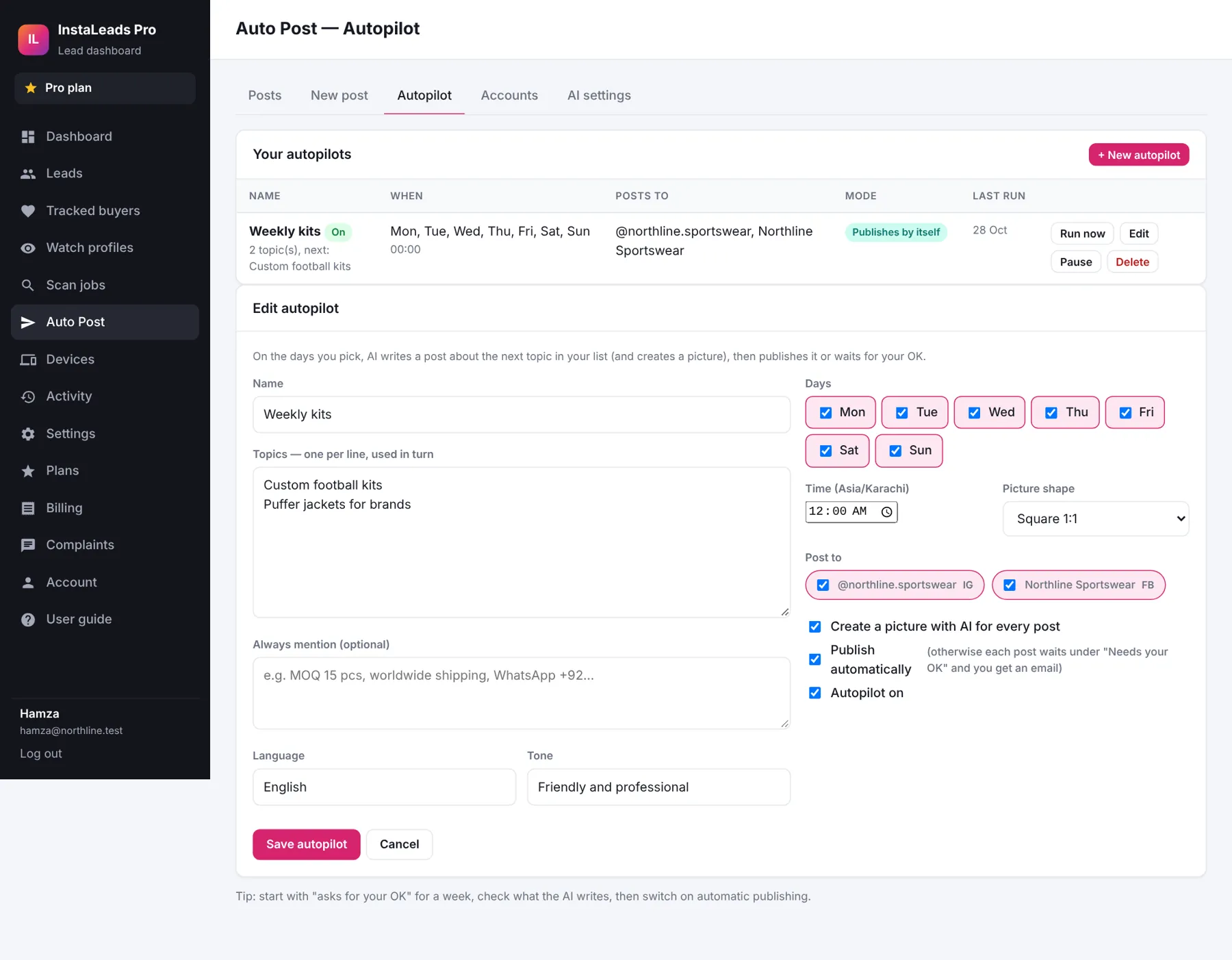
Write a list of topics (one per line), pick the days and the time. On those days AI writes a post about the next topic, creates a picture, and either publishes it or puts it under Needs your OK and emails you. Start with "asks for your OK" for a week, then switch on automatic publishing.
13Upgrade and pay
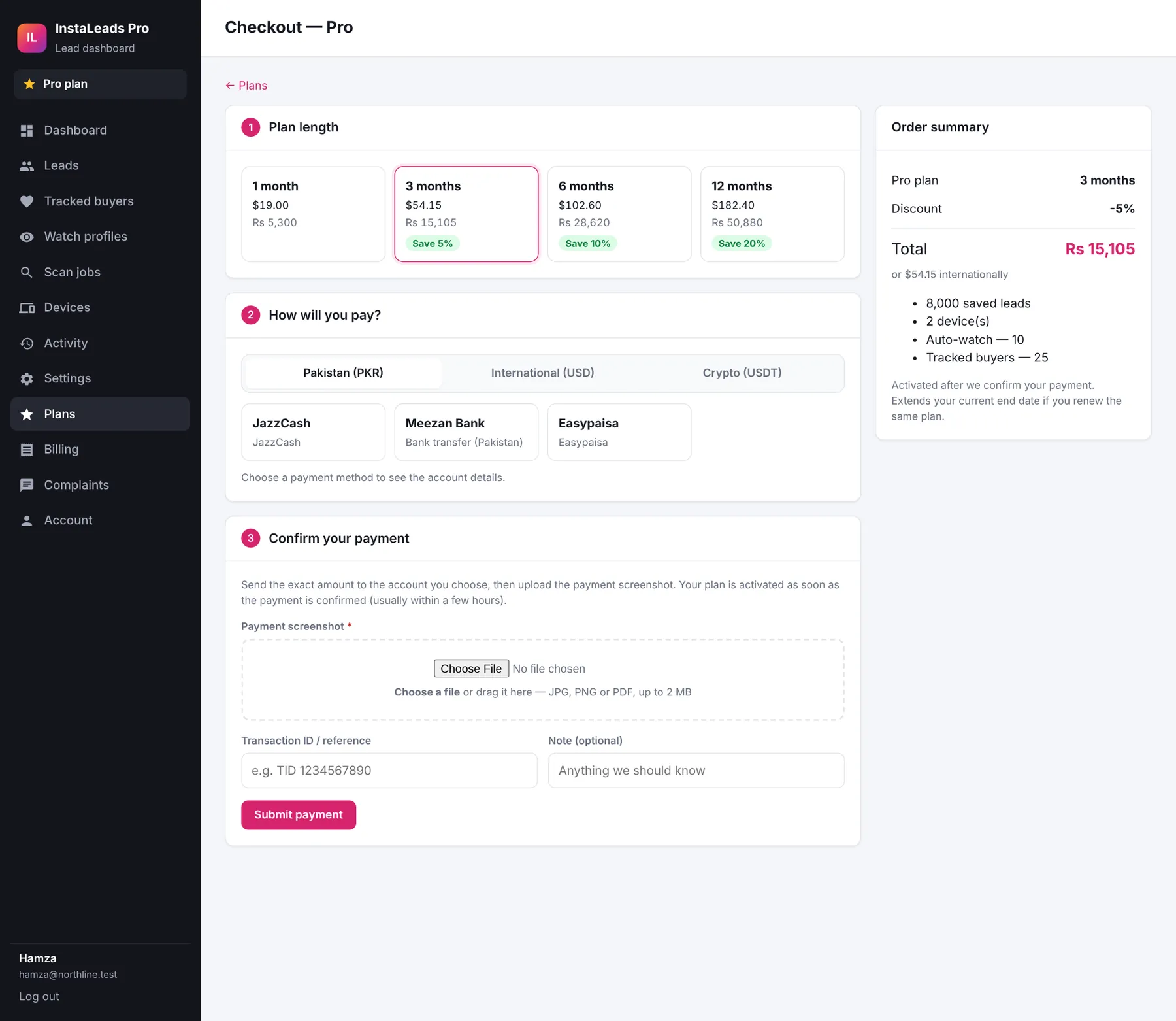
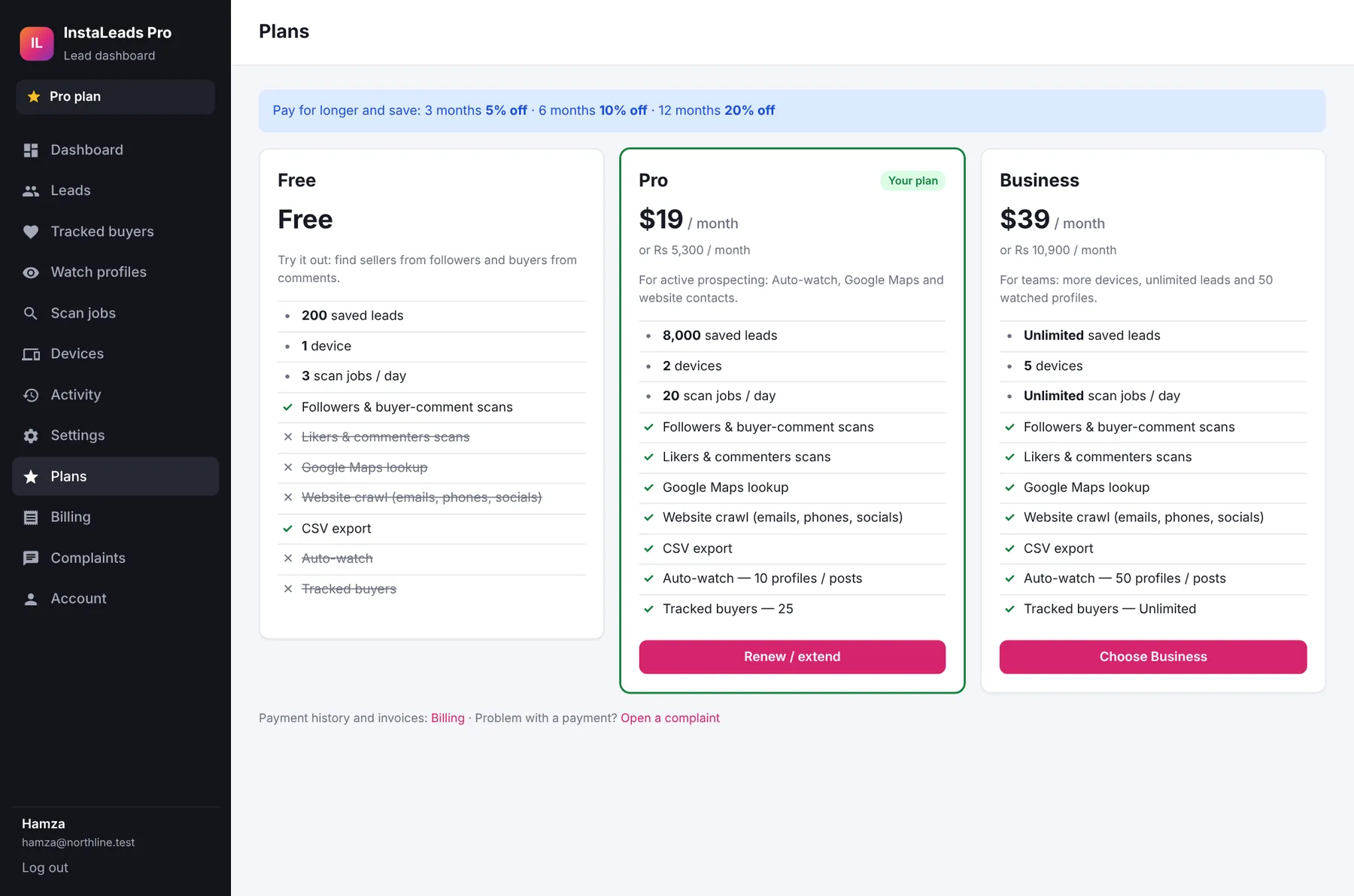
Paid plans give more leads, more computers, likers and commenters scans, Auto-watch and tracked buyers. Paying for 3, 6 or 12 months at once is cheaper per month.
- Open Plans and press Choose on the plan you want.
- Plan length: pick 1, 3, 6 or 12 months. Prices are shown in dollars and rupees.
- How will you pay? Choose Pakistan (PKR), International (USD) or Crypto (USDT), then a payment method. Its account details appear with Copy buttons.
- Send exactly the amount shown, from your bank app, JazzCash, Easypaisa, Wise or wallet.
- Confirm your payment: upload the payment screenshot, add the transaction ID, and press Submit payment.
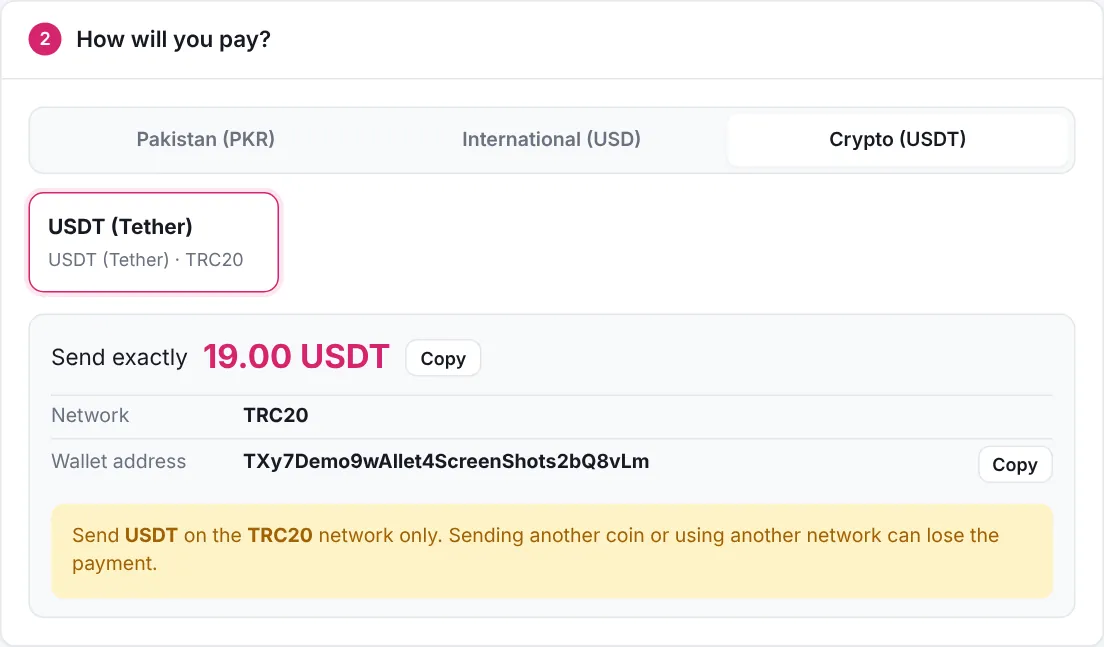
Paying with USDT
Choose Crypto (USDT). Send USDT on the network shown (for example TRC20) to the wallet address, then paste the transaction ID (TxID) from your wallet. The TxID is required for USDT.
We check the payment and switch your plan on, usually within a few hours. You get an email, and the order shows as Approved under Billing. If you renew the same plan, the new months are added to your current end date.
14Billing and invoices
Billing lists every payment with its status: Pending, Approved or Rejected. Open one to see a printable invoice with your screenshot.
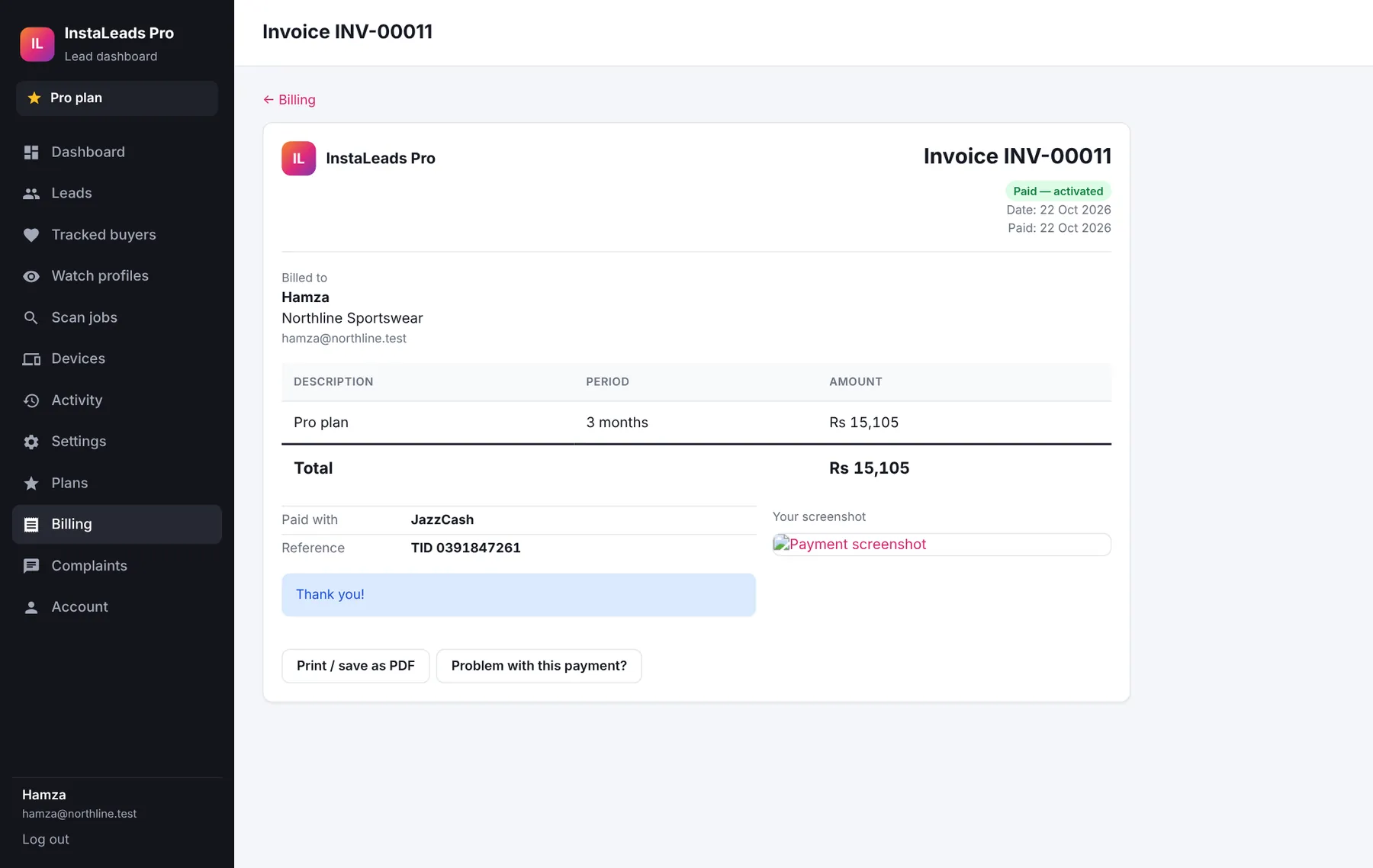
If a payment is rejected, the reason is shown on the invoice. Press Pay again to fix it, or open a complaint from the same page.
15Complaints and support
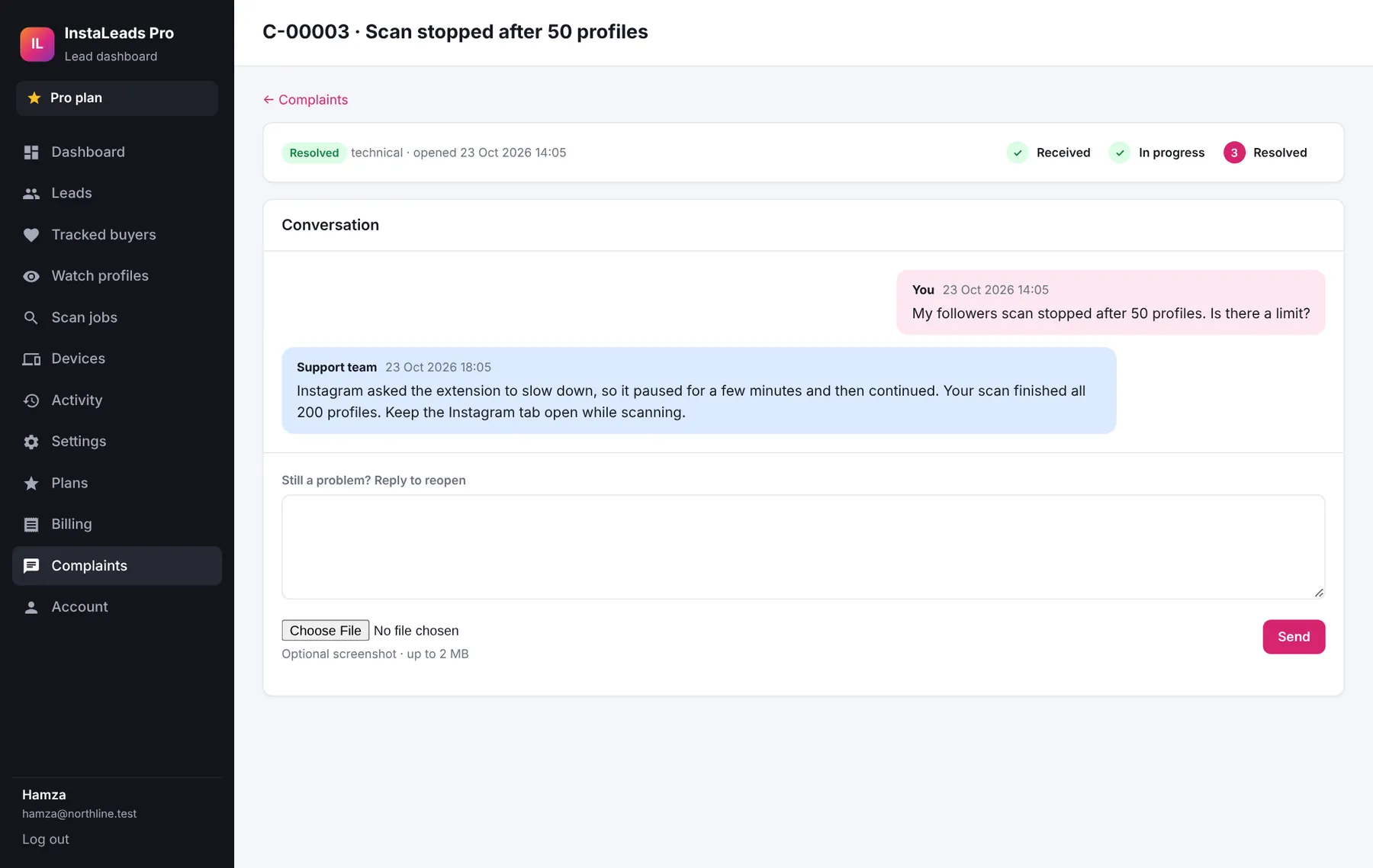
Use Complaints in the dashboard for any problem: a payment, a scan, your account. Each complaint gets a number like C-00012 and you can follow it from start to finish.
- Open Complaints and press New complaint.
- Pick a category, write a subject and what happened, and attach a screenshot if it helps. For a payment problem, pick the payment it is about. Press Send complaint.
- You get an email when we reply, and Complaints shows a red number.
- If our reply solves it, press Mark as resolved. If not, just reply and it opens again.
16Devices and staying safe
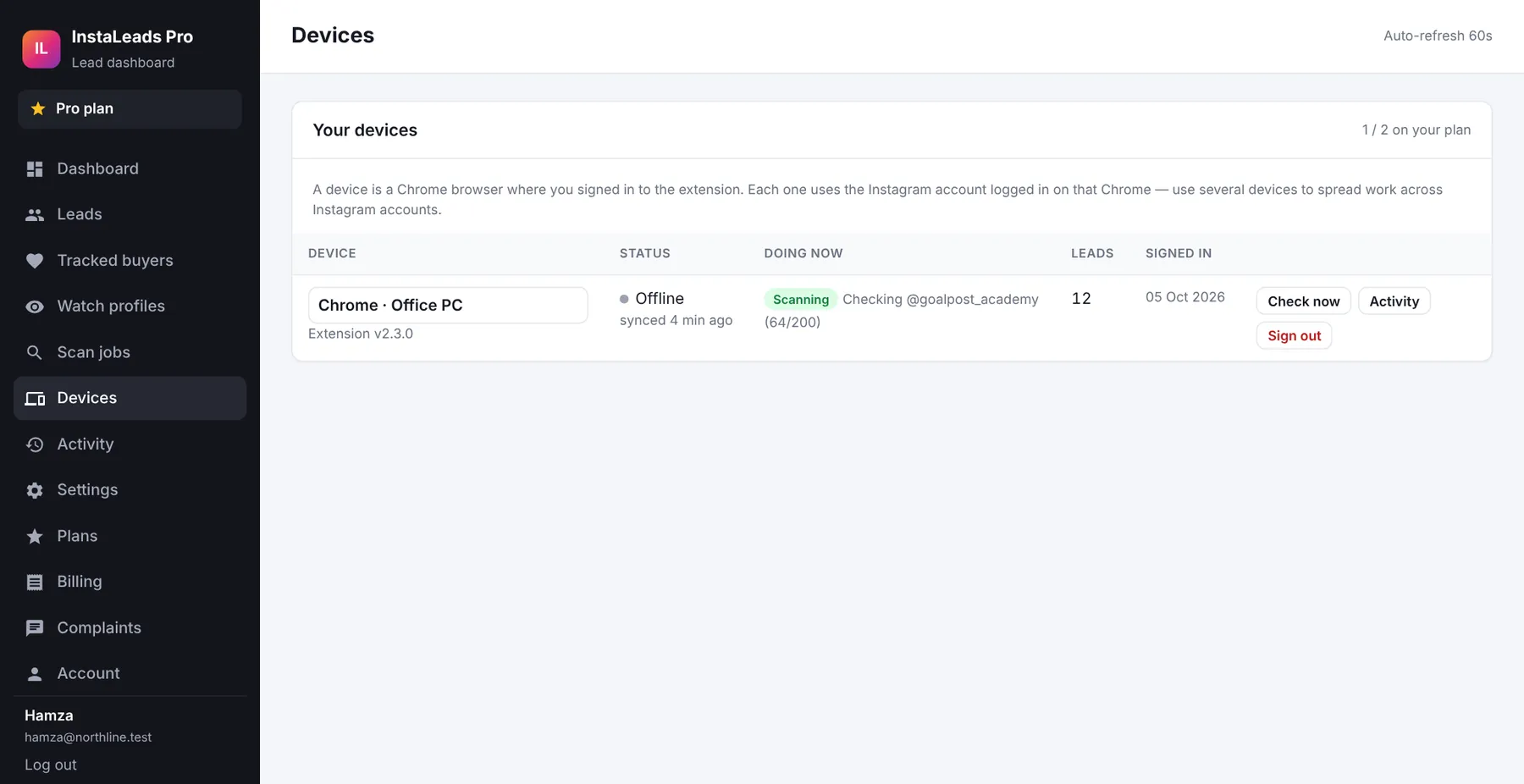
Devices lists every Chrome signed in to your account, whether it is online and what it is doing. Sign out a computer you no longer use to free a place on your plan.
Tips to keep your Instagram account healthy
- Pick a speed in Settings → Scan speed: Safe for a new or small Instagram account, Balanced for most, Fast only for an older, active account. The extension slows down by itself if Instagram asks.
- Keep Quick filter on for followers and likers scans: it skips personal-looking profiles without opening them, which makes scans several times faster.
- Prefer several scans of 200 profiles over one scan of 5,000.
- If you see “pausing” in the log, let it wait. Don't restart the scan straight away.
- Use an Instagram account you also use normally, not one created today.
- Keep “Save business accounts only” on unless you have a clear reason to save personal accounts.
17Fixing common problems
| “Instagram needs you to log in” | Open instagram.com in the same Chrome and log in (finish any security check Instagram shows), then press Resume. |
|---|---|
| “Your plan allows 1 device(s)” | Go to Devices on the website and sign out an old computer, or upgrade. |
| The scan says “pausing N min” | Instagram asked for a break. Leave Chrome open; it continues by itself. |
| No emails or phones found | Press Allow website scanning in the extension, and check Settings → Contact details. Some businesses simply don't list contacts. |
| A buyer comment was not saved | By default only business accounts are saved. Also check that the comment uses one of your buyer words in Settings. |
| Auto-watch finds nothing | Chrome must be open on at least one signed-in computer, Auto-watch must be on, and profiles only count posts newer than the days you set. |
| No password reset email | Wait a few minutes and check spam. Still nothing? Contact support and we'll send you a reset link. |
| Payment still pending | We check payments by hand, usually within a few hours. If it takes longer, open a complaint about that payment. |
Still stuck? Open a complaint and attach a screenshot of what you see.